Accounts and signing in
Signing in to StitchPress saves your diagrams and patterns to your account so you can pick up your work from any device. This page covers how to sign in, what an account gives you, and how to change the interface language.
Creating an account and signing in
Section titled “Creating an account and signing in”StitchPress uses a hosted sign-in page. When you open the app without being signed in, you are taken to the sign-in screen.
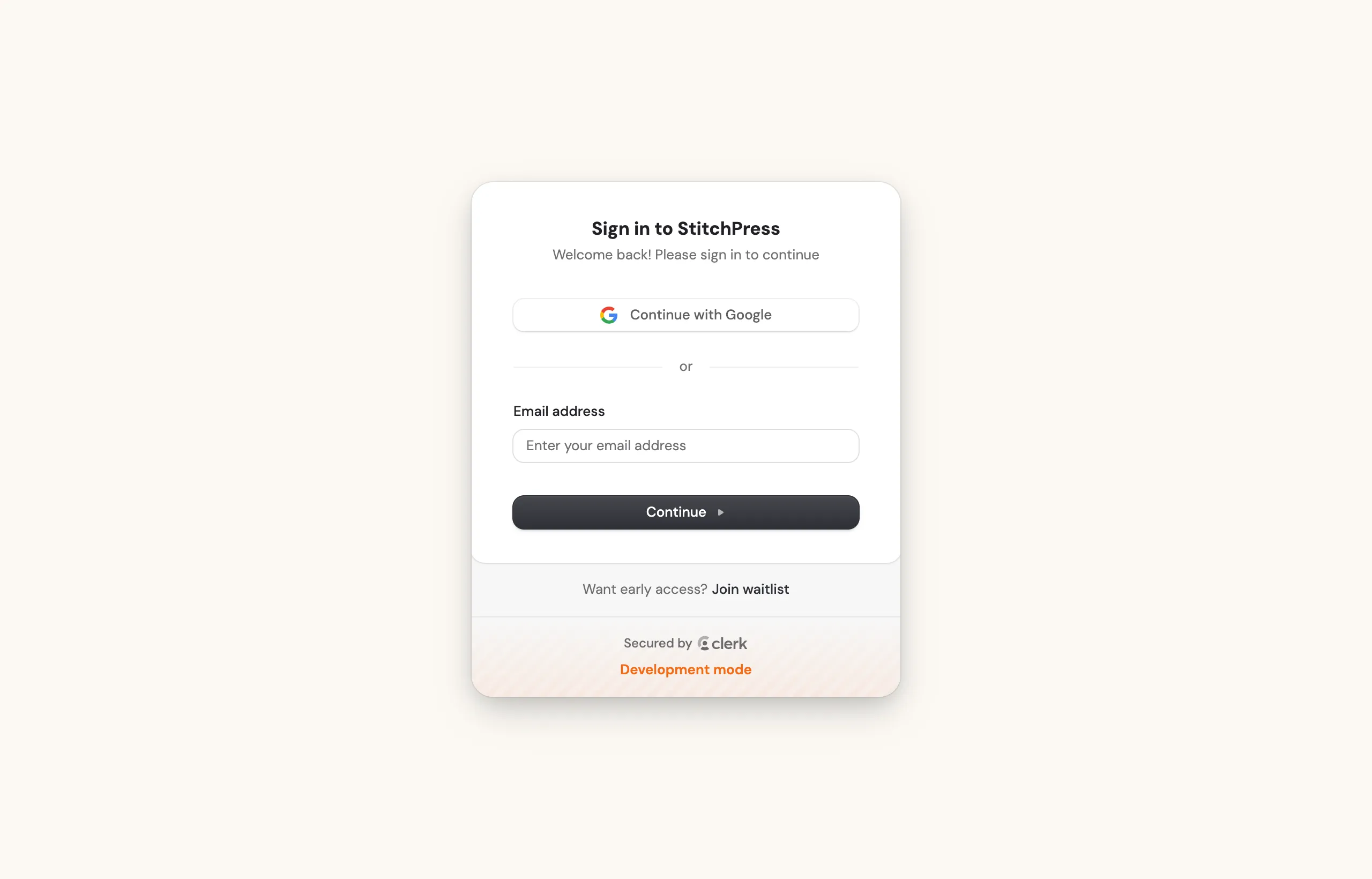
You can sign in in two ways:
- Continue with Google — sign in with your Google account in one click.
- Email address — enter your email and continue to sign in with it.
What an account gives you
Section titled “What an account gives you”Working while signed in unlocks the parts of StitchPress that need somewhere to keep your work:
- Saved projects. Your crochet diagrams, knit charts, and patterns are stored in your account instead of only on the device you made them on.
- Sync across devices. Your work is kept up to date automatically, so you can start a diagram on one computer and continue it on another.
- Sharing. You can create view-only links to your diagrams and invite specific people to see them. See Sharing your diagrams.
You can review your account details under Settings → Account, where Manage account opens your profile to update your name, email, and sign-in options.
Language settings
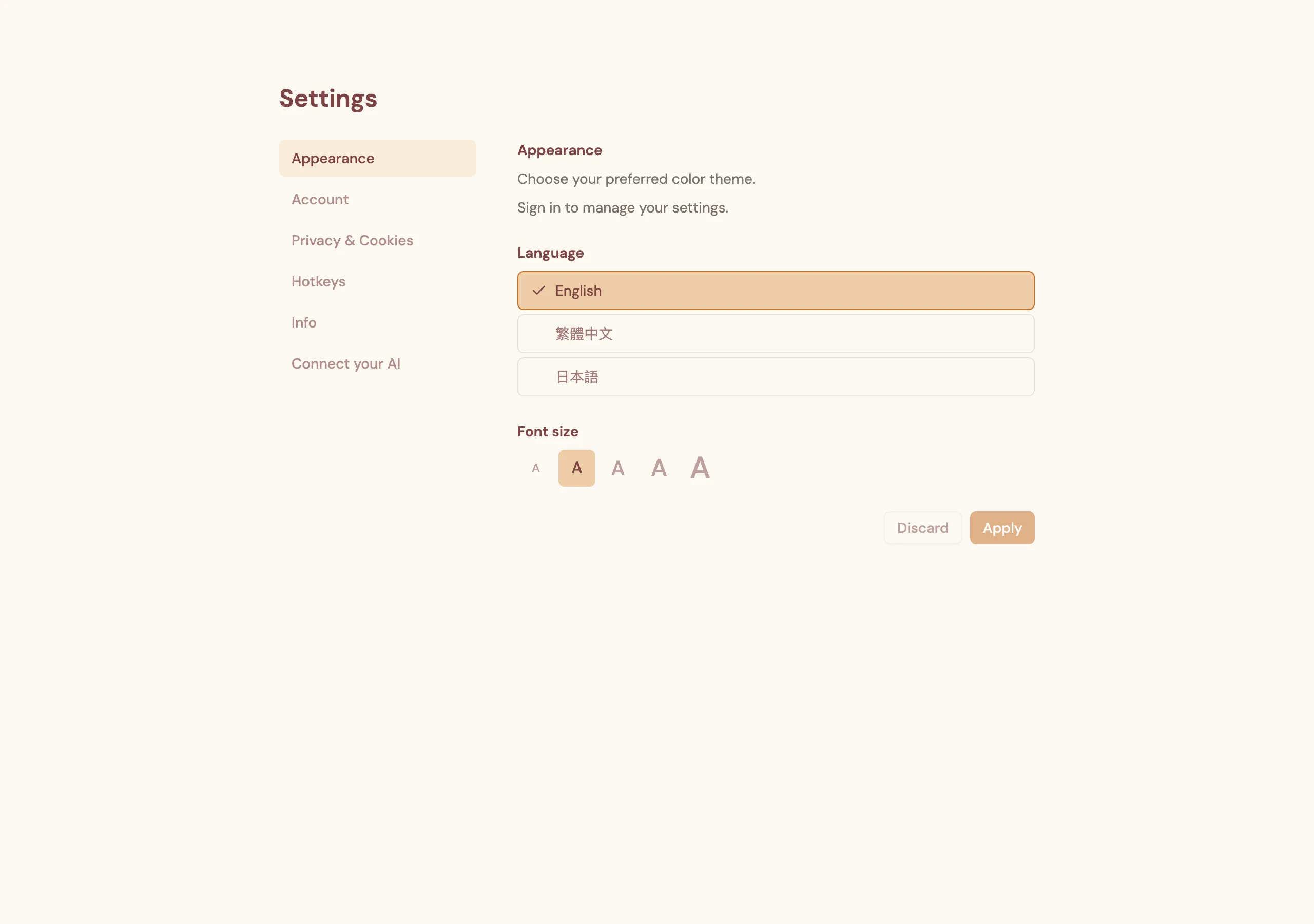
Section titled “Language settings”The StitchPress interface is available in three languages:
- English
- 繁體中文 (Traditional Chinese)
- 日本語 (Japanese)
To change languages, open Settings → Appearance and choose a language under the Language heading. Your choice previews immediately; press Apply to keep it, or Discard to go back.