Stitch colors
You can assign a color to each stitch in your diagram to plan and visualize colorwork before you start crocheting. Colors are part of the diagram, so they follow your chart into exports and shared views.
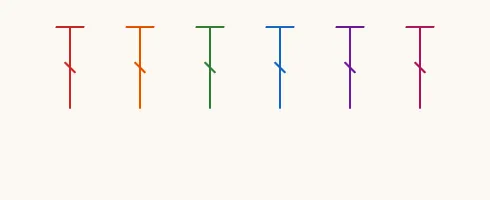
The active color
Section titled “The active color”The color swatch in the toolbar shows the active color — the color new stitches are placed in. Select it to open the color picker.
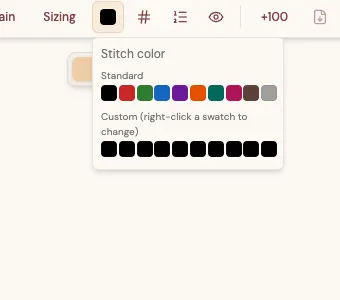
The picker has two rows:
- Standard — ten fixed swatches covering the common colors.
- Custom — ten slots you can set to any color you like.
Select a swatch to make it the active color, then place stitches as usual — each one takes that color. To work in a new color, open the picker again and choose a different swatch.
Setting a custom color
Section titled “Setting a custom color”The custom row starts out empty (black). To put your own color in a slot:
- Open the color picker.
- Right-click a custom swatch. The picker switches to an editor with a hue slider, a saturation-and-value area, and a hex field.
- Pick a color, or type an exact value into the hex box.
- The slot keeps your color, and it becomes the active color.
Your custom swatches are saved on your device, so they are ready the next time you open the crochet editor.
Recoloring an existing stitch
Section titled “Recoloring an existing stitch”To change the color of a stitch you have already placed:
- Select the stitch (or several stitches at once).
- In the inspector on the right, find the Color section and select its swatch.
- Choose a new color from the picker. The selected stitches update immediately.