Viewing and sharing
The crochet editor has a read-only view mode, which is what people see when you share a diagram with them, and it can export any part of a chart as an image. This page covers all three: the view-only mode, sharing, and exporting.
View-only mode
Section titled “View-only mode”A view-only version of a diagram lets someone look at your chart without being able to change it.
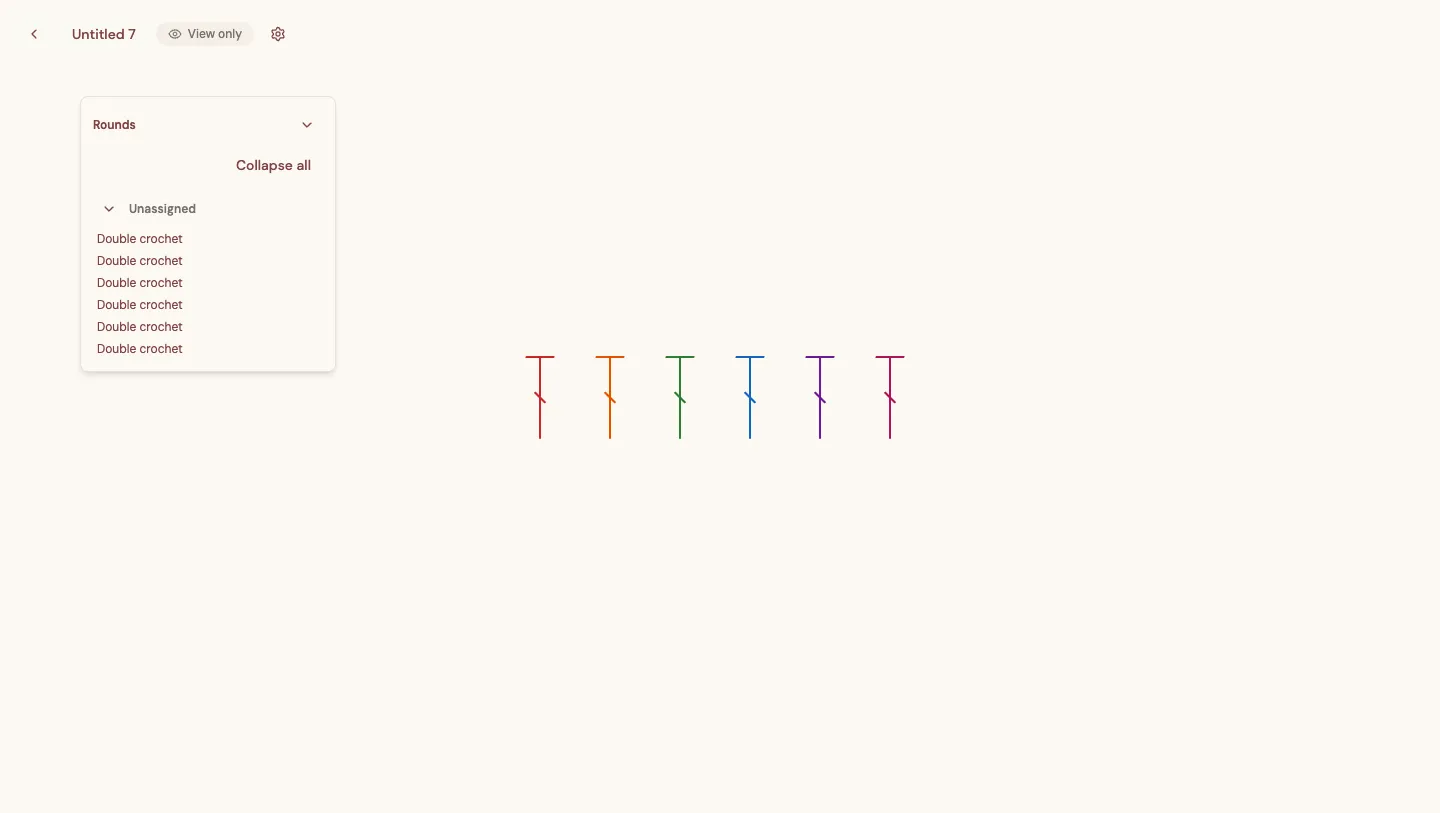
In view-only mode there is no stitch rail, toolbar, or inspector — just the diagram, a View only badge, and a settings menu. Viewers can still pan, zoom, and explore the chart (including the Rounds list), but nothing they do changes your original. This is exactly what people see when they open a diagram you have shared.
Sharing a diagram
Section titled “Sharing a diagram”You can share a diagram so other people can open the view-only version without needing an account of their own. Share from the Share button in the editor’s toolbar, or from the ⋯ actions menu on the diagram’s card in Your workspace.
You can share two ways:
- A link anyone can open — create a link and send it to anyone. They see your diagram in view-only mode.
- Named people by email — invite specific people; they get access when they sign in with that email address.
By default viewers can only look. If you turn on Viewers can save a copy, signed-in viewers can drop their own editable copy into their workspace, leaving your original untouched.
The full sharing walkthrough — creating and copying a link, inviting people, and revoking access — is in Sharing your diagrams.
Exporting an image
Section titled “Exporting an image”To save part of a diagram as a picture — for a pattern PDF, a listing photo, or a message — use the export tool.
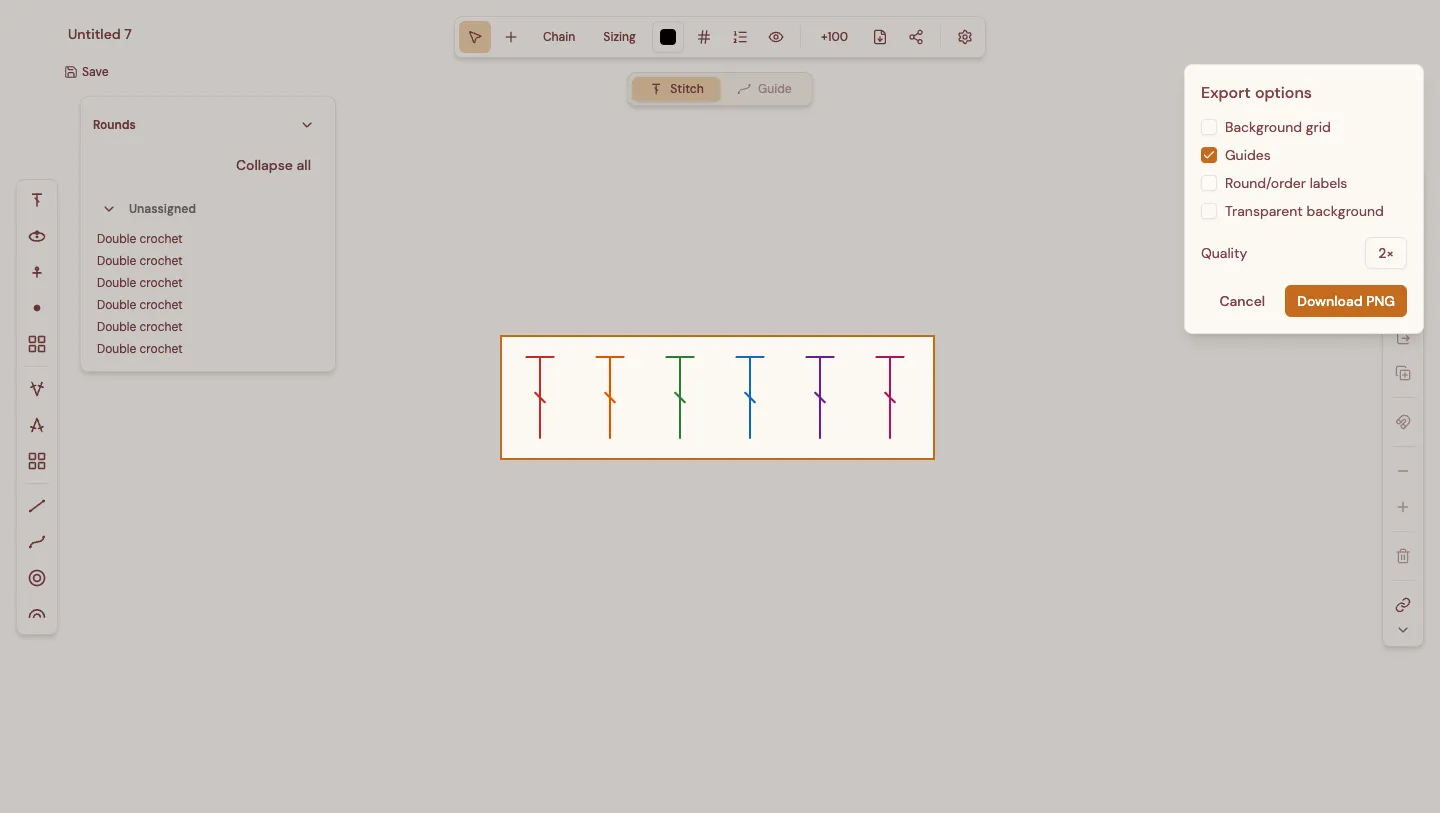
- Select the Export range button in the toolbar (the download icon).
- Drag a rectangle across the canvas around the part of the chart you want. Press Esc to cancel.
- In the Export options panel, choose what to include:
- Background grid — include the canvas grid behind the stitches.
- Guides — include any guide lines and circles.
- Round/order labels — include the round and order numbers.
- Transparent background — export with no background instead of a solid one.
- Quality — a higher setting produces a larger, sharper image.
- Select Download PNG to save the image.